
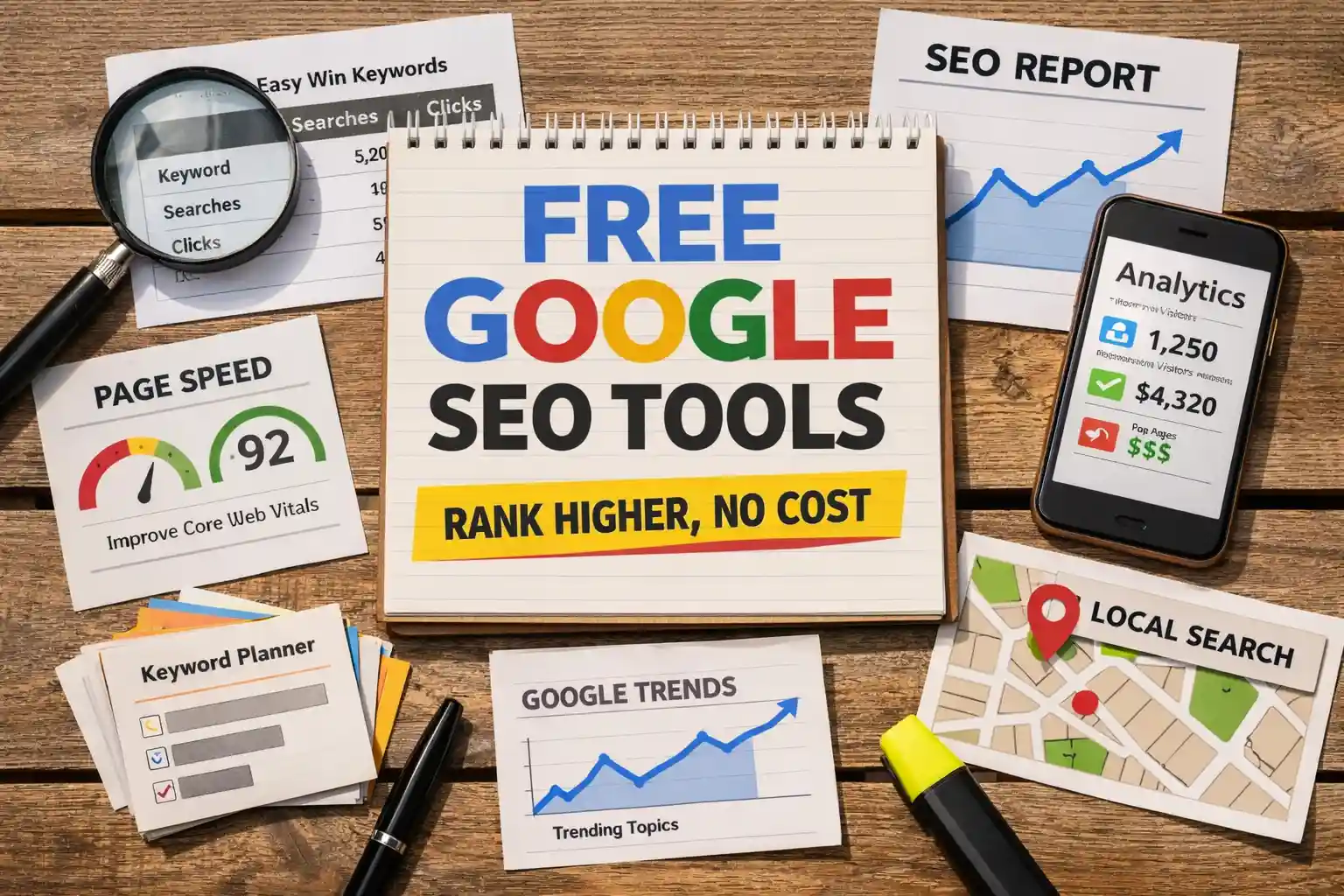
Best Free SEO Tools from Google And How to Use Them to Rank
Most people assume you need expensive SEO tools to rank. You don’t. Google already gives you everything you need, for free.
What most people lack isn’t access—it’s clarity. Knowing where to click, what to look for, and how to turn data into action.
This guide shows exactly how to use Google’s own tools to find keywords, fix issues, and grow traffic without guesswork. No theory, just actions that move rankings.
You’ll know how to turn Google’s free data into consistent organic traffic.
By the end of this page, you’ll know how to:
- Google Search Console: Find “easy-win” keywords you’re already ranking for.
- Google Analytics: See which pages are actually making you money.
- Google Trends & Keyword Planner: Spot what people are searching for before your competitors do.
- PageSpeed & Business Profile: Fix the hidden “speed” and “local” issues blocking your growth.
The 3 Google Tools You Should Open Today
Don’t try to fix everything at once. Start with these three tools. They give you the fastest, clearest signals on what to improve right now.
Google Search Console: Find what’s already working (and broken)
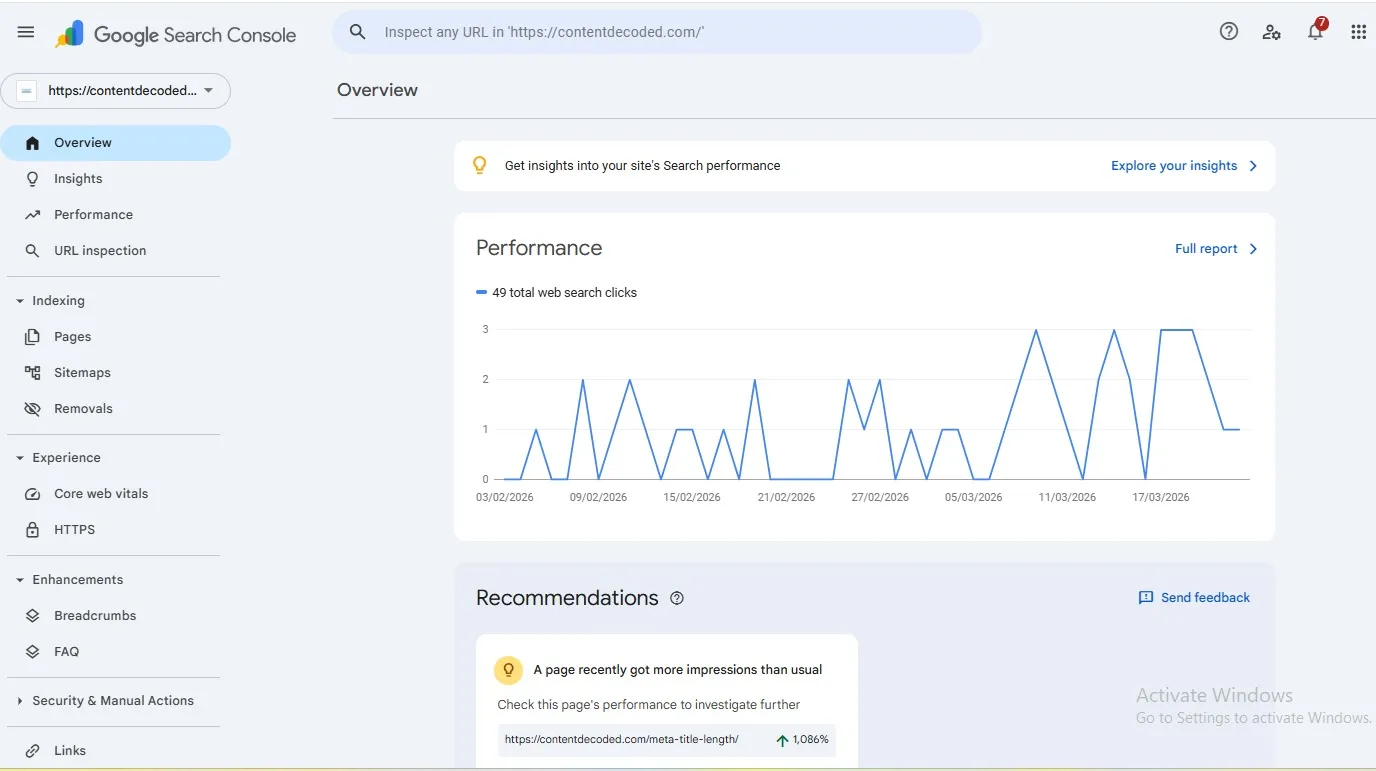
Here’s how to spot easy opportunities inside your existing data:
- Open the Performance report
- Click on Queries
- Sort by impressions (high to low)
- Look for keywords with high impressions but low clicks (low CTR)
- Click a query → see which page is ranking for it
These are your “easy win” keywords. Google is already showing your page, but people aren’t clicking yet.
Also check:
- Indexing / Coverage → pages not indexed, errors, or warnings
- Fixing these ensures your content can actually appear in search
Quick win example: A page gets 5,000 impressions for “best budget headphones” but only 50 clicks. Update the title and meta description to be more specific and compelling. That alone can lift clicks fast.
Bold insight: If Google is already giving you impressions, you’re closer to ranking than you think.
Google Analytics (GA4): See what people actually do on your site
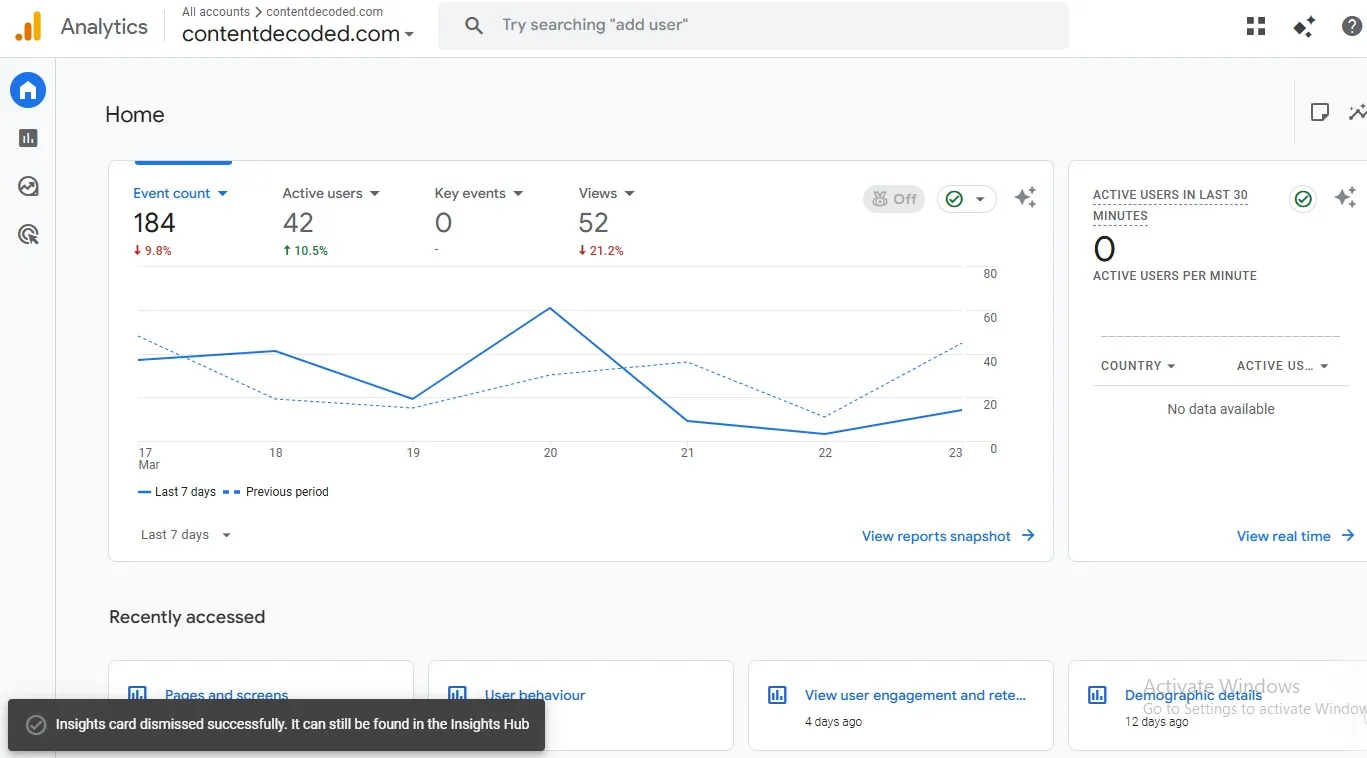
Traffic alone doesn’t tell you much. What matters is how people behave once they land.
Check these key reports:
- Reports → Engagement → Landing Pages
- Reports → Engagement → Pages and Screens
- User engagement metrics (average engagement time, engaged sessions)
What this means: Pages with strong engagement are signals of quality. Pages with traffic but low engagement need better content, structure, or intent match.
PageSpeed Insights: Fix what slows your rankings
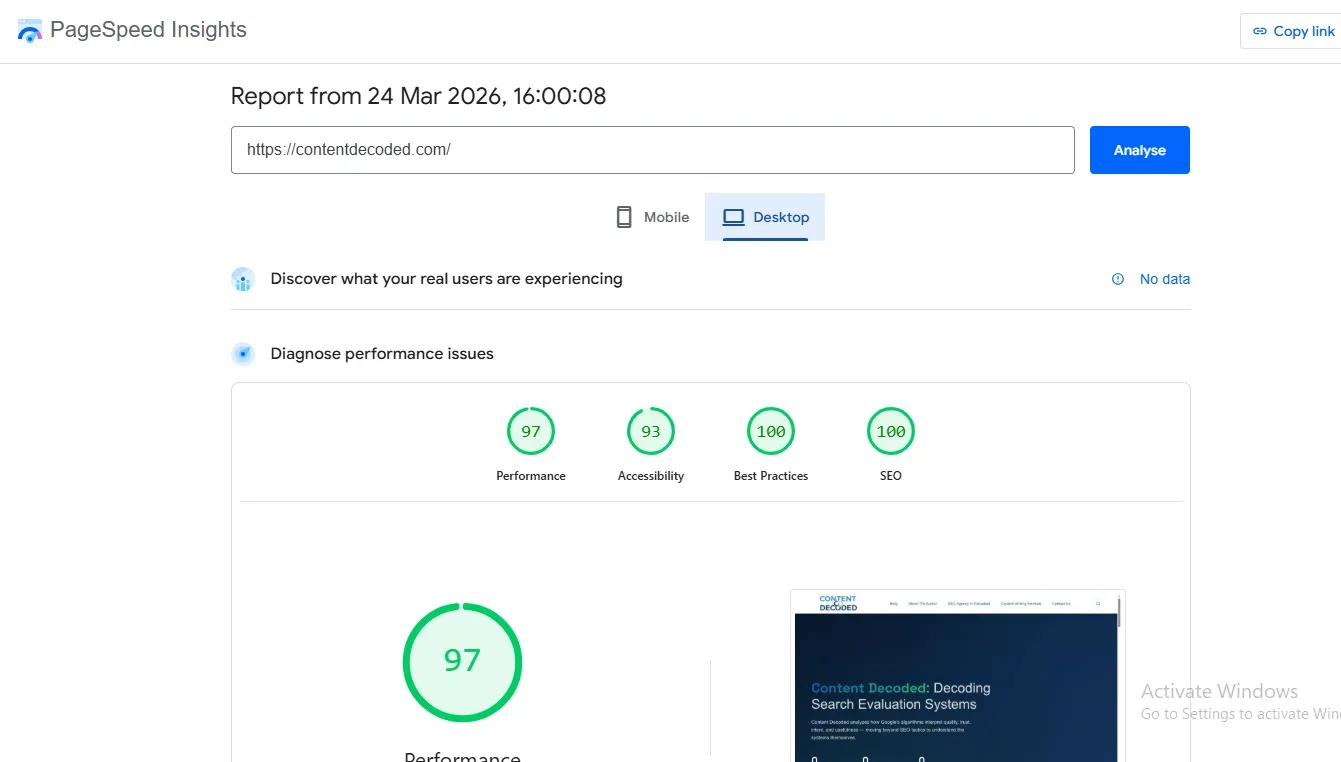
Run any page URL through it. You’ll see how fast it loads and where it struggles. Core Web Vitals are just a way to measure speed, stability, and responsiveness.
Common issues and quick fixes:
- Large images → compress and use modern formats (WebP)
- Too many scripts → remove unused plugins or delay loading
- Slow server response → upgrade hosting or use caching
- Layout shifts → set image dimensions properly
Focus on simple fixes first. Small speed improvements can have a real impact on rankings and user experience.
🔧 Hands-On: Your 15-Minute Google Tools Audit
Let’s make it practical. Grab a notebook or spreadsheet. Follow this mini-audit using the three tools above:
- Step 1 (Search Console): Pick one query with >500 impressions and CTR below 3%. Rewrite the title & meta description to be more specific + benefit-driven.
- Step 2 (GA4): Find the page with the highest bounce rate among your top 10 landing pages. Add a clear subheading and a relevant internal link to keep users engaged.
- Step 3 (PageSpeed): Run your homepage. Fix the easiest issue: compress the largest image using Squoosh or TinyPNG.
✅ That’s it. Do these three small tasks today, and you’ll already be ahead of 80% of site owners who collect data but never act.
How to Find Keywords Using Google (Without Any Paid Tool)
Google already shows you what people actually search for. You don’t need estimates when you can see real behaviour in real time.
Use Google Autocomplete to find real-world keywords

Instead of guessing what people want, let Google’s search bar show you exactly what is trending right now. This is the most accurate data you can get because it comes directly from Google’s live database.
Step-by-Step:
- Go to browser (not Incognito Mode): As this feature is not working in a private browser, use a regular browser.
- Type your “Seed” keyword (example: weight loss)
- Don’t hit enter: just look at the list that drops down. These are high-volume terms.
- The “Alphabet Soup” Method (Most Reliable): Since symbols like _ are now ignored, use letters to force new suggestions. Type your keyword followed by a single letter: weight loss a → apps, accessories, amaranth; weight loss b → books, breakfast, belts
- Pro Tip: Go through the whole alphabet (a-z) to find “hidden” niches your competitors are missing.
- The “Question Trigger” for Intent: In 2026, Google is built for conversations. Use “trigger words” to find long-tail questions: Start your search with “How”, “Why”, “Is”, or “Can”. Example: Can weight loss _ -> (Wait for the dropdown) -> cause hair loss, improve skin, help joints.
I ignored this method before; I was thinking it was irrelevant, but later, just for testing, I made a blog using this method, and that gave me good traffic.
Steal questions from “People Also Ask”
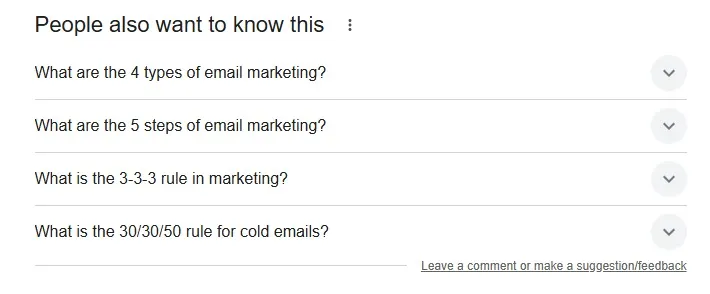
The “People Also Ask” box is a goldmine for content ideas.
Every time you click a question, more appear. It keeps expanding.
How to use it:
- Search your main keyword
- Open 2–3 questions from the box
- Collect all new questions that load
- Turn them into headings
Content idea example: Keyword: email marketing. Questions you might find: What is email marketing with an example? Is email marketing still effective? How do beginners start email marketing? These can directly become your H2s or H3s.
Use “Related Searches” for content depth
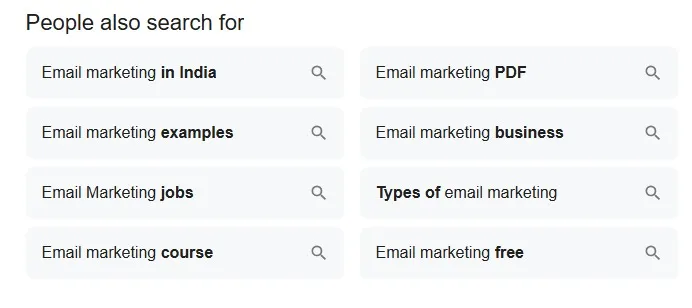
Scroll to the bottom of Google results. You’ll find “Related Searches”. These help you cover your topic completely without missing important angles.
Mini checklist:
- Pick 3–5 related searches
- Include them naturally in your content
- Use them as subtopics or sections
Google Trends: Check if your topic is worth it
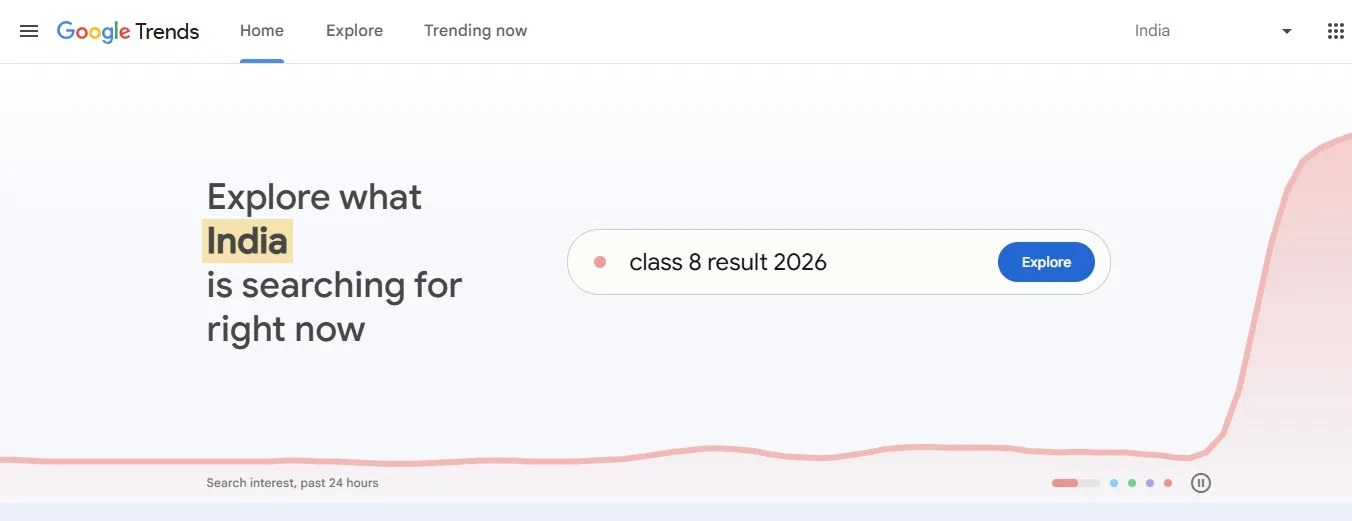
Before creating content, make sure the topic actually has interest.
3-step process:
- Go to Google Trends
- Enter your keyword
- Check the graph (rising, stable, or declining)
Comparison example: Compare blogging vs affiliate marketing. You’ll quickly see which one is growing faster or has consistent demand.
Know more about Google Autocomplete feature and how it is different from Trends – https://developers.google.com/maps/documentation/places/web-service/place-autocomplete
Note: Open Google Search Console, and check a page and its queries. If a page is targeting one keyword but getting most impressions from related (LSI) keywords, you can include those LSI keywords in your meta title and description. This can improve click-through rate without changing the whole content.
Turn Google Data Into Content That Actually Ranks
Most people collect keyword data and stop there. The real advantage comes from turning that data into focused, useful content. Here’s how to make it work.
Turn keywords into simple blog structures
Publishing one post per keyword creates thin, scattered content. Grouping related keywords builds stronger pages that rank better.
Before: “best running shoes”, “running shoes for beginners”, “cheap running shoes” — three separate posts competing with each other.
After: One guide: “Best Running Shoes for Beginners (Budget to Premium)”. Everything lives in one place, clearly structured.
How to do it:
- Pick a main keyword (primary topic)
- Collect related keywords with similar intent
- Group them under subheadings
- Turn each group into a section, not a new post
- Keep one clear focus per page
Use Search Console to update old content
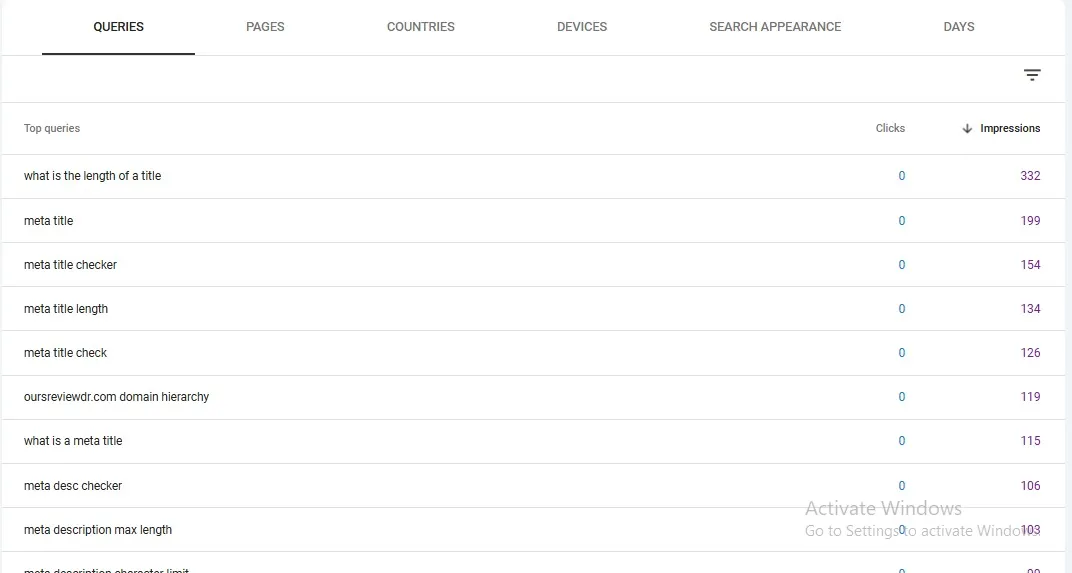
Some of your best opportunities are already sitting on page 2.
Steps:
- Open Google Search Console
- Go to Performance → Search Results
- Filter queries with positions between 11 and 20.
- Find pages ranking for those queries
- Update those pages
What to change:
- Add missing subtopics based on queries
- Improve title and meta description
- Strengthen intro for clarity
- Update outdated info
- Add internal links from relevant pages
Small updates here often move pages to page 1.
Match content with search intent (the real ranking factor)
If your content doesn’t match what the user wants, it won’t rank—no matter how well it’s written.
| Intent Type | What user wants | Example query | Content type to create |
|---|---|---|---|
| Informational | Learn something | “how to lose weight” | Guide, tutorial, blog post |
| Transactional | Take action or buy | “buy running shoes” | Product page, landing page |
| Navigational | Find a specific website/page | “Nike official website” | Homepage or brand page |
What this really means is simple: Check the top-ranking pages and align your format with them. Don’t fight intent—follow it.
Free Google Tools for Technical SEO (Fix What’s Blocking You)
Sometimes your pages don’t rank not because the content is weak, but because search engines can’t properly access or understand them. Technical issues quietly hold sites back more often than people realize.
Submit your sitemap and fix indexing issues
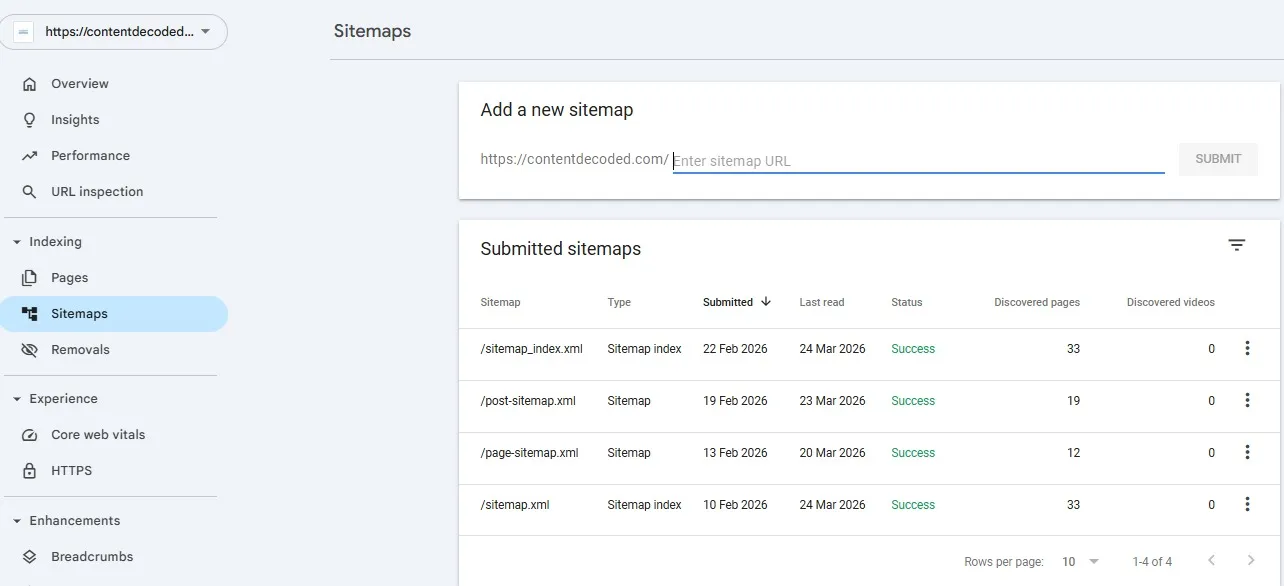
A sitemap tells Google which pages matter and helps it discover them faster using Google Search Console.
Step-by-step:
- Open Search Console
- Go to “Sitemaps”
- Enter your sitemap URL (e.g., /sitemap.xml)
- Click Submit
- Check status for errors or warnings
Common mistakes: Sitemap contains broken or redirected URLs, Pages blocked by robots.txt, Noindex tags on important pages, Submitting outdated sitemap, Including duplicate or low-value pages.
Use URL Inspection to get pages indexed faster
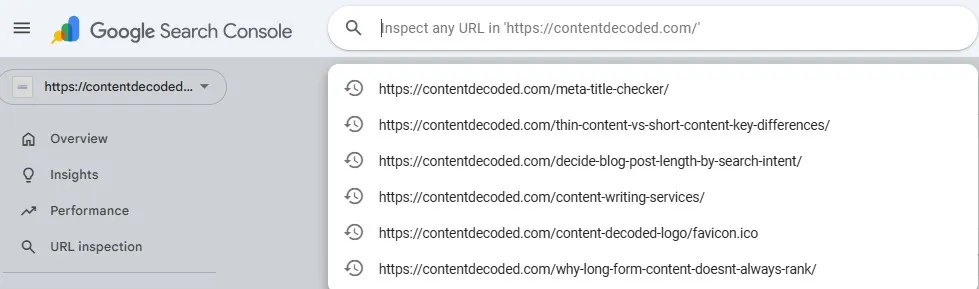
The URL Inspection tool in Google Search Console lets you check how Google sees a page and request indexing.
Steps:
- Paste your URL into the inspection bar
- Review crawl and indexing status through ”Test Live URL”
- Click “Request Indexing” if needed to index manually.
When to use this: After publishing a new page, After fixing errors on a page, When a page isn’t showing in search. Requesting too many indexing in short time can cause temporary invisibility of pages in SERP.
Use site: search to audit your indexed pages
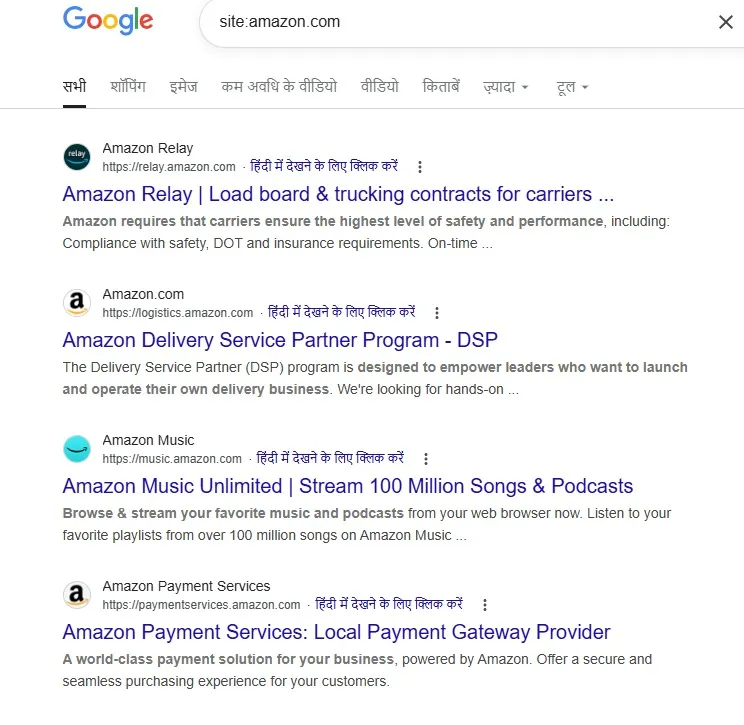
The site: search operator on Google Search helps you see what pages are actually indexed.
Example searches: site:yourdomain.com, site:yourdomain.com/blog, site:yourdomain.com “keyword”
Quick action checklist:
- Identify thin or low-quality pages
- Spot duplicate URLs
- Find irrelevant or outdated pages
- Remove or noindex pages that shouldn’t rank
How to Rank Locally Using Google’s Free Ecosystem?
Local rankings are largely shaped inside Google’s own products. If you use them right, you don’t need heavy tools or big budgets to show up.
Optimize your Google Business Profile for visibility
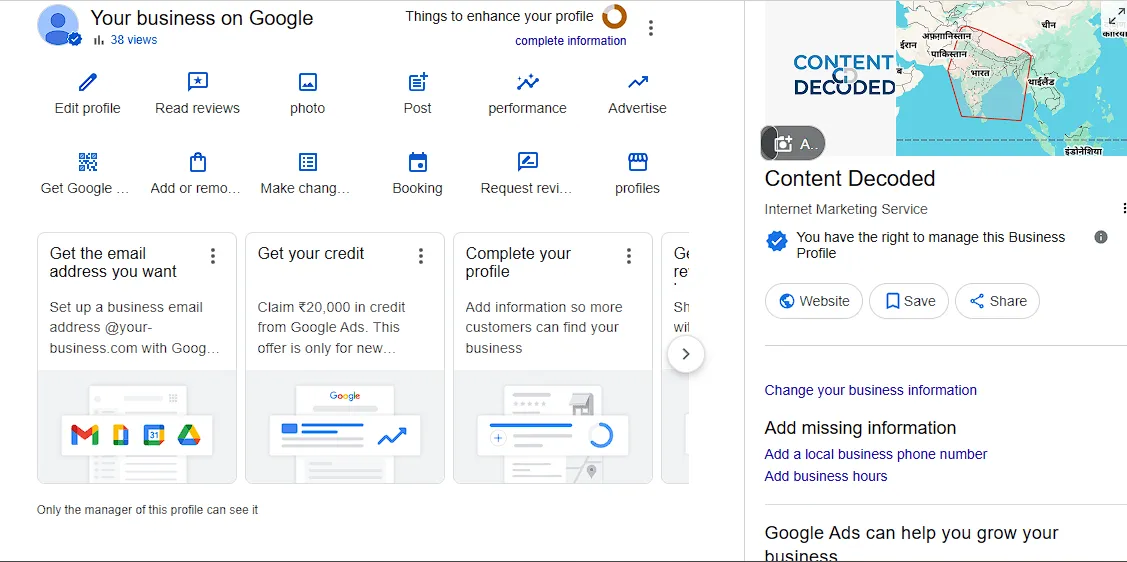
Your Google Business Profile is the foundation of local SEO. It tells Google what you do, where you are, and why you’re relevant.
Checklist:
- Select the most accurate primary and secondary categories
- Add all services with clear descriptions and natural keywords
- Write a concise business description with location terms
- Upload high-quality, real photos (interior, exterior, team, work)
- Post regular updates (offers, news, events)
- Keep hours, phone, and address fully accurate
- Add products if relevant
What most people miss: Geotagging images before uploading, Updating photos regularly (not just once), Using posts consistently (Google favors active profiles), Filling every optional field available.
Use reviews and Q&A as SEO content
Reviews and Q&A sections quietly build keyword relevance and trust at the same time. Every customer response adds fresh, natural language tied to your services.
Actionable tips:
- Ask customers to mention specific services in reviews
- Reply to every review using relevant keywords naturally
- Seed common questions in the Q&A section and answer them yourself
- Keep answers clear, helpful, and location-focused
- Upvote helpful questions to keep them visible
Hidden Google Features Most SEO Blogs Ignore
Most SEO advice circles the same playbook. Meanwhile, a few underused Google surfaces quietly drive serious traffic. Here are three worth paying attention to.
Google Images as a traffic source
Image search isn’t just for inspiration. It can bring consistent, intent-driven visitors if your visuals are properly optimized.
Use clear, descriptive file names, not random strings. Alt text should explain what’s in the image in natural language. Relevance matters just as much as the page itself, so images should actually support the topic.
How to use it:
- Name files with keywords (e.g., on-page-seo-checklist.png)
- Write specific alt text that matches search intent
- Add images near related text, not randomly
- Use original visuals where possible
- Write inside the content if possible to get visitors
Note: Never just create an image as a formality, and never use a low-quality image or AI image where it is irrelevant.
Google Discover (bonus traffic channel)
Discover pushes content to users before they even search. It favours fresh, engaging, and visually appealing content over traditional keyword targeting.
It’s less about ranking and more about resonance. Topics that tap into trends, curiosity, or strong opinions tend to perform better.
How to use it:
- Publish timely, relevant content
- Focus on compelling headlines and strong visuals
- Keep mobile experience clean and fast
- Build topical authority so Google trusts your content
Google Gemini for SEO workflows
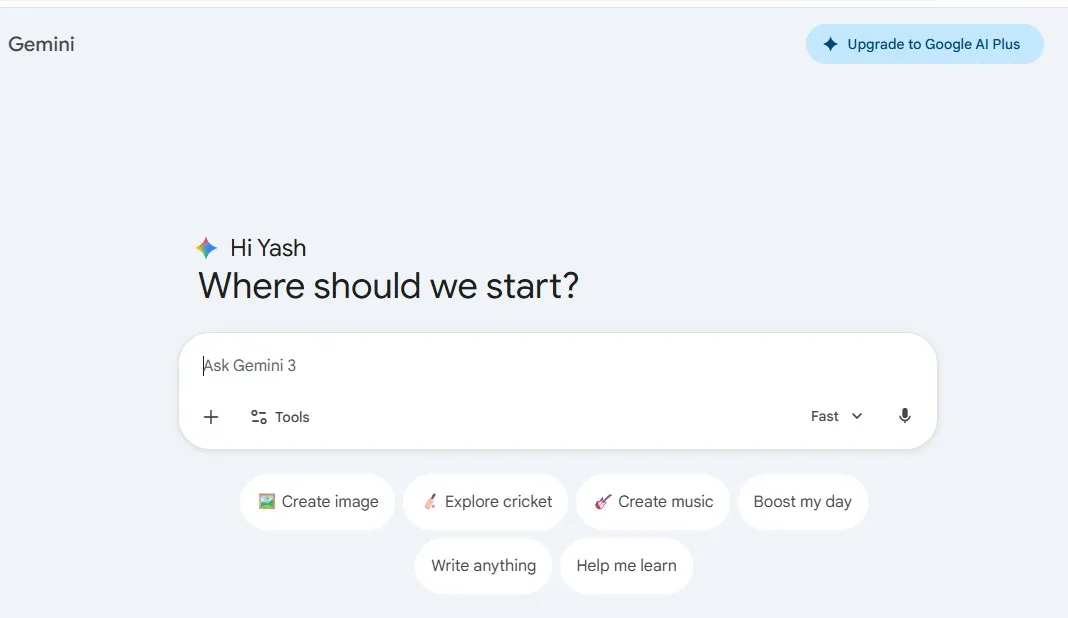
Gemini can speed up research and uncover patterns you might miss manually. It’s especially useful for organising messy keyword data and spotting gaps.
Think of it as a thinking partner, not just a writing tool.
How to use it:
- Cluster related keywords into topics
- Generate content angles from a single keyword
- Identify missing subtopics in existing articles
- Summarize competitors to find gaps quickly
Common Mistakes When Using Free Google SEO Tools
Free tools don’t hold you back. The real issue is how they’re used. Small missteps can quietly kill your results.
- Ignoring data → Take action consistently
- Chasing impressions → Focus on clicks and intent
- Not updating old content → Refresh and improve regularly
- Overcomplicating SEO → Stick to simple, proven steps
- Ignore user behaviour and do nothing to improve UX and UI.
- Ignore suggestions given by PageSpeed Insights and do not make those changes.
Simple Weekly SEO Routine Using Only Google Tools
SEO gets messy when you try to do everything at once. A simple weekly system keeps things moving without burning time or energy.
Weekly Checklist (Repeat Every Week):
- Check Google Search Console (10 mins): Review clicks, impressions, and any errors. Look for sudden drops or pages gaining traction.
- Update 1 Page (10 mins): Pick one underperforming page. Improve the title, add missing info, or refresh outdated sections.
- Find 3 New Keywords (5 mins): Use Google Keyword Planner or search suggestions. Focus on simple, low-competition terms.
- Fix 1 Technical Issue (5 mins): Run a quick check on PageSpeed Insights. Fix one thing—image size, loading speed, or mobile usability.
Final Take: You Don’t Need Paid Tools to Rank
You don’t need a stack of expensive tools to grow in search. What really moves the needle is how well you use what’s already available.
Start simple. Pick one Google tool, use it consistently, and focus on doing the basics better than most.
Clarity and consistency beat complexity every time.
- Use data to guide decisions, not guesswork
- Focus on execution, not collecting tools
- Improve one step at a time, then build from there
FAQs
Is Google Search Console enough for keyword research?
It’s not a traditional keyword tool, but it’s often more useful. It shows real queries your site is already appearing for, which means you’re working with proven opportunities instead of guesses.
How long does it take to see results from these tools?
If you act on the data, small improvements like CTR or indexing fixes can show results in a few days to weeks. Bigger ranking gains usually take a few weeks to a couple of months.
What is a “good” CTR in Google Search Console?
It depends on position, but generally: Position 1–3 → 10%–30%+, Position 4–10 → 3%–10%. If your CTR is low for your position, your title and meta description likely need improvement.
Should I create a new post for every keyword?
No. That leads to thin content and keyword cannibalization. Group related keywords and cover them in one strong, well-structured page.
Why am I getting impressions but no clicks?
This usually means one of three things: weak title/meta description, mismatched search intent, or stronger competitors. Start by improving your title to make it more specific and benefit-driven.
How often should I update old content?
At least once every 1–3 months for important pages. If a page is already ranking on page 2, updating it sooner can give faster gains.
Do Core Web Vitals really affect rankings?
Yes, but indirectly. They impact user experience. Faster, stable pages keep users engaged, which supports better rankings over time.
Is Google Analytics necessary if I have Search Console?
Yes. Search Console shows how people find you. Analytics shows what they do after they land. You need both to understand the full picture.
How many keywords should I target per page?
One main keyword and several closely related variations. The focus should stay tight, but the coverage should be complete.
What if my page is not getting indexed?
Check for technical issues first: noindex tags, blocked by robots.txt, poor-quality or duplicate content. Then use URL Inspection to request indexing.
How do I know if my content matches search intent?
Search your keyword and study the top 5 results. If they’re guides, write a guide. If they’re product pages, don’t try to rank with a blog post.
Can I rank without backlinks using these tools?
For low-competition keywords, yes. For competitive terms, backlinks still help. But strong content and proper optimisation can take you surprisingly far.
How many pages should I optimise per week?
Start small. Even updating 1–2 pages properly each week is enough to see steady growth over time.
What’s the biggest mistake beginners make with free SEO tools?
They look at data but don’t act on it. These tools only work if you consistently make changes based on what you see.
Is Google Trends useful for SEO or just for trends?
It’s useful for both. It helps you avoid dead topics and catch rising ones early, which gives you a timing advantage.
Do I need technical knowledge to use these tools?
Not much. Most fixes are basic (titles, content, images, speed). You only need deeper technical help for complex issues.
What should I do first after reading this guide?
Open Google Search Console, find one query with high impressions and low clicks, and improve that page’s title and description. Start there and build momentum.
— trust grows in systems, not silos —