Google Crawls Your Page Despite Your Noindex Tag: Why It Happens and How to Actually Stop It
Adding a noindex tag doesn’t stop Google from crawling a page—it only prevents it from showing in search results. It controls visibility, not accessibility. Google still needs to crawl the page to read the tag, and it may keep coming back if the page is linked somewhere, in your sitemap, or blocked wrongly in robots.txt.
To fix it, first allow Google to crawl the page so it can see the noindex. Then remove it from your sitemap and internal links. If it’s already indexed, use Search Console to speed up removal. Once it’s out of search results, you can block it in robots.txt or delete it if you want crawling to stop completely.
First, Understand What ‘noindex’ Really Means
A noindex tag does not block access to your page. It only controls visibility in search results.
In simple terms:
- It tells Google: “Do not show this page in search results.”
- It does not tell Google: “Do not visit this page.”
That means Google is still allowed to:
- Open the page
- Read the content
- Process the information
So when you see Google crawling a noindex page, it is not doing something wrong—it is doing exactly what the tag allows it to do.
Why Google Still Crawls Your Noindex Pages
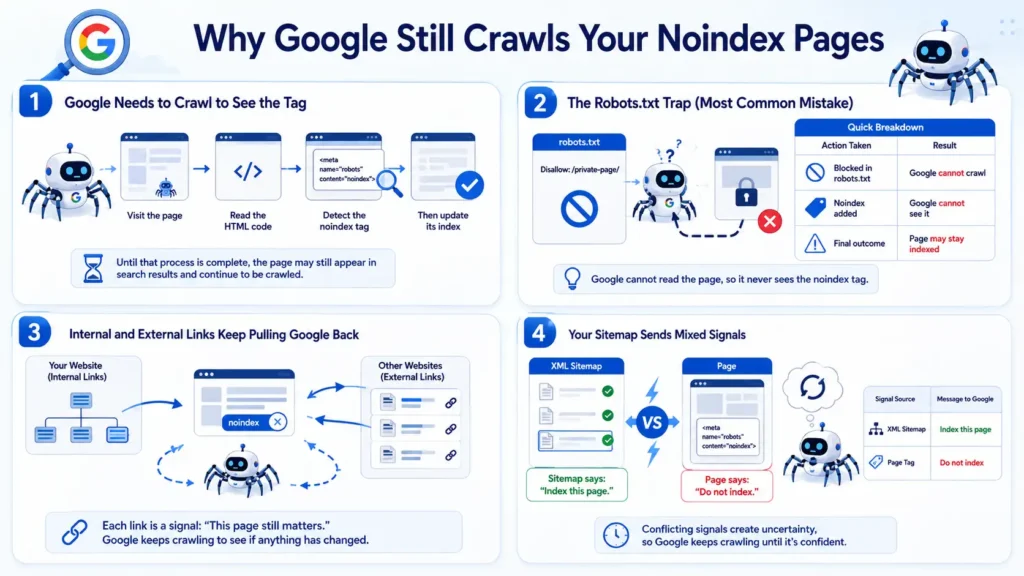
Now let’s look at the real reasons behind this behaviour. Each one plays a role, and often, more than one is happening at the same time.
1. Google Needs to Crawl to See the Tag
This is the most basic but most important reason.
Google cannot follow instructions it hasn’t seen yet. When you add a noindex tag, Google does not get notified instantly.
Instead, it has to:
- Visit the page again
- Read the HTML code
- Detect the noindex tag
- Then update its index
Until that process is complete, the page may still appear in search results and continue to be crawled.
This is why patience matters here, even though it feels slow.
2. The Robots.txt Trap (Most Common Mistake)
This is where things often go wrong.
Many people try to block the page in robots.txt and add noindex at the same time, thinking it will speed things up.
Example:
Disallow: /private-page/At first glance, this seems correct, but it creates a conflict.
Here is what actually happens:
- robots.txt blocks Google from entering the page
- Because of that, Google cannot read the page content
- Which means it never sees the noindex tag
Now if the page was already indexed earlier, it stays in search results because Google cannot confirm your new instruction.
Quick Breakdown
| Action Taken | Result |
| Blocked in robots.txt | Google cannot crawl |
| Noindex added | Google cannot see it |
| Final outcome | Page may stay indexed |
This is why the order of actions matters more than the actions themselves.
3. Internal and External Links Keep Pulling Google Back
Google mainly discovers and revisits pages through links.
So even if a page has noindex, Google may continue crawling it because:
- Your own website still links to it
- Other websites link to it
- Old references still exist
Each link acts like a signal saying: “This page still matters.”
Because of that, Google keeps checking the page again and again to see if anything has changed.
4. Your Sitemap Sends Mixed Signals
Your XML sitemap plays a strong role in guiding Google.
It is supposed to list pages that you want indexed.
When a page appears in both places:
- The sitemap says, “Include this page.”
- Page says: “Do not include me.”
This creates confusion.
What happens then?
| Signal Source | Message to Google |
| XML Sitemap | Index this page |
| Page Tag | Do not index |
To resolve this conflict, Google continues crawling the page until it is confident about what to do.
The Right Way to Stop Google
Fixing this properly depends on your situation. The approach is different depending on whether the page is already indexed or not.
Are You Dealing With an Already Indexed Page?
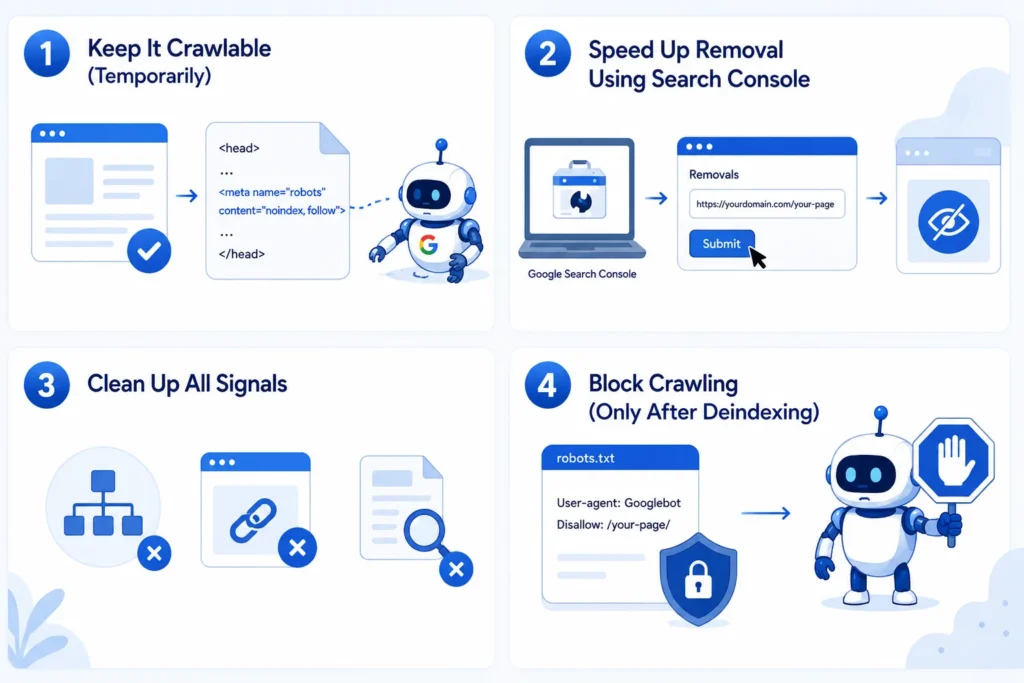
If the page is already showing in search results, your goal should be clear: First remove it from search, then stop crawling. Doing this in the wrong order creates long-term problems.
Step 1: Keep It Crawlable (Temporarily)
This step feels counterintuitive but is necessary.
Make sure:
- The page is not blocked in robots.txt
- The noindex tag is correctly placed inside <head>
Example:
<meta name="robots" content="noindex, follow">
This allows Google to visit the page and read your instruction.
Step 2: Speed Up Removal Using Search Console
Instead of waiting for Google to act on its own, you can speed things up.
Use the Removals tool in Google Search Console:
- Submit the URL
- Temporarily hide it from search results
This does not remove it permanently, but it gives Google time to process your noindex properly.
I recently ran into this exact headache when Google indexed a handful of unnecessary blog drafts that I had already deleted. Because Google discovered them before the deletion processed, they got stuck in the live search results.
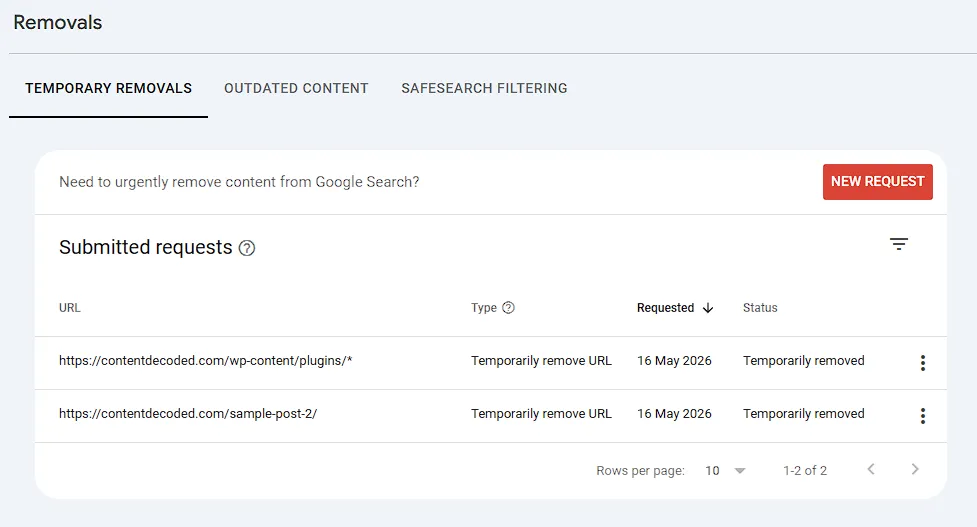
To kill them off fast, I turned to the Removals tool to temporarily pull them out of the index while Google cleaned up the dead ends.
Step 3: Clean Up All Signals
Now reduce the reasons for Google to keep coming back.
Focus on:
- Removing the page from your XML sitemap
- Removing internal links pointing to it
- Avoiding any new references to that page
This step is important because even after deindexing, links can still attract crawling.
Step 4: Block Crawling (Only After Deindexing)
Once the page is no longer visible in search results, you can safely block it.
User-agent: Googlebot
Disallow: /your-page/
At this stage:
- Google already knows not to index it
- Now you are stopping unnecessary crawling
Doing this in reverse order is what causes issues.
If the Page Is Brand New
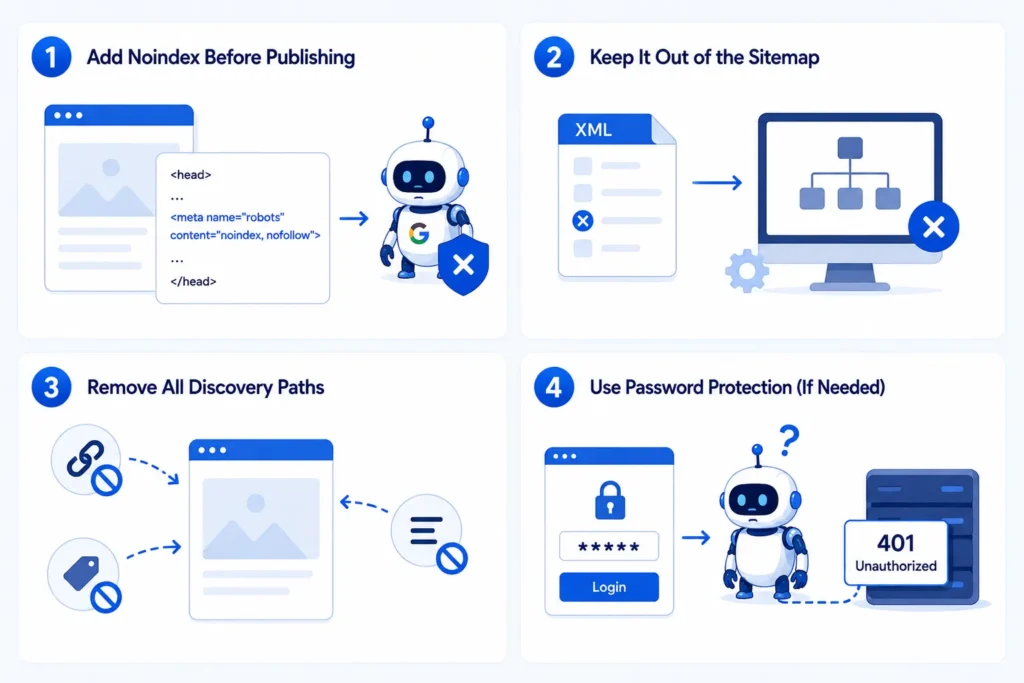
With new pages, your goal is different. Instead of removing them, you want to prevent them from being indexed in the first place.
Step 1: Add Noindex Before Publishing
Add the <meta name=”robots” content=”noindex, nofollow“> tag to the page before it goes live. When Googlebot discovers the page for the very first time, it will immediately know to stay away.
Step 2: Keep It Out of the Sitemap
Many tools automatically add new pages to the sitemap.
You need to:
- Manually exclude the page
- Or configure your SEO plugin properly
Otherwise, you are inviting Google to crawl it.
Step 3: Remove All Discovery Paths
If Google cannot find the page, it is unlikely to crawl it.
So make sure:
- No internal links point to it
- It is not listed in categories or tags
- It is not shown in navigation menus
This reduces visibility completely.
Step 4: Use Password Protection (If Needed)
If the page contains private or sensitive content, do not rely on SEO settings.
Instead, use server-level protection.
When Google tries to access the page:
- It receives a 401 Unauthorized response
- It cannot enter or read anything
This is the most reliable way to stop both crawling and indexing.
How to Check If Google Can See Your noindex Tag
You can quickly confirm whether Google is actually seeing your noindex tag by using the URL Inspection Tool in Google Search Console.
Quick Steps
- Open Google Search Console
- Paste your page URL in the top search bar
- Click Test Live URL
- Wait for the result and check the Availability section
What the Results Mean
| Scenario | What You’ll See | What It Means |
| Correct Setup | Crawl allowed: Yes Indexing allowed: No (noindex detected) | Perfect. Google can read your tag and will remove the page soon |
| Blocked by robots.txt | Crawl allowed: No | Problem. Google can’t see your noindex; remove the block temporarily |
| Tag Not Working | Crawl allowed: Yes Indexing allowed: Yes | Your noindex is missing, broken, or placed incorrectly |
Quick Tip
Click “View Tested Page” → HTML, then search for noindex.
If you can see it there, Google can see it too.
Tracking the Cleanup in Real-Time
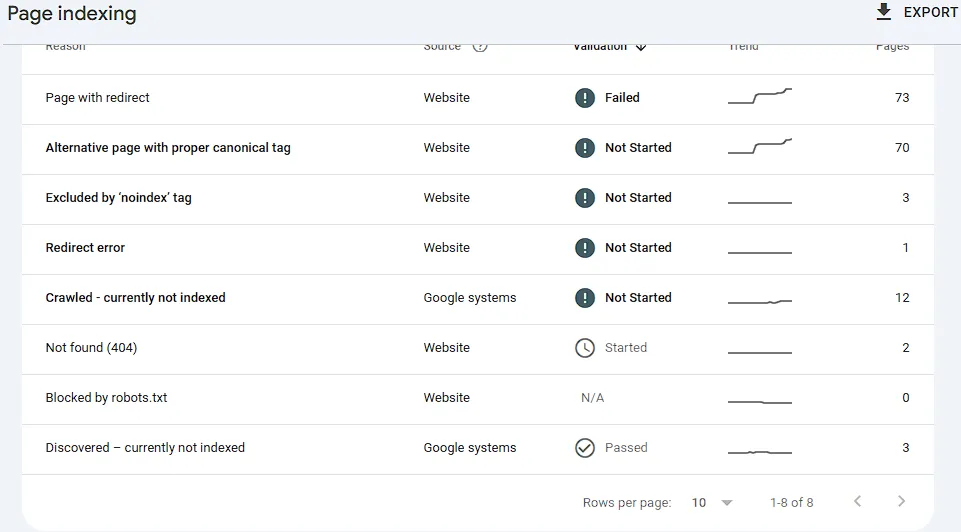
You can track the success of your cleanup directly inside the page indexing coverage report. I constantly monitor this view for my own site to make sure Google is obeying my rules and isn’t wasting my crawl budget on low-value paths.
You can go here, replacing ‘url’ with yours to check page indexing reports – https://search.google.com/search-console/index?resource_id=https://example.com/
Looking at my data here, you can see the strategy in action. The 73 pages under “Page with redirect” and 70 under “Alternative page with proper canonical tag” show exactly what a healthy consolidation phase looks like. Instead of fighting Google, I am successfully steering its bots away from duplicate paths and keeping my core topical footprint tight, authoritative, and clean.
When Noindex Isn’t Enough: The Bigger Risks
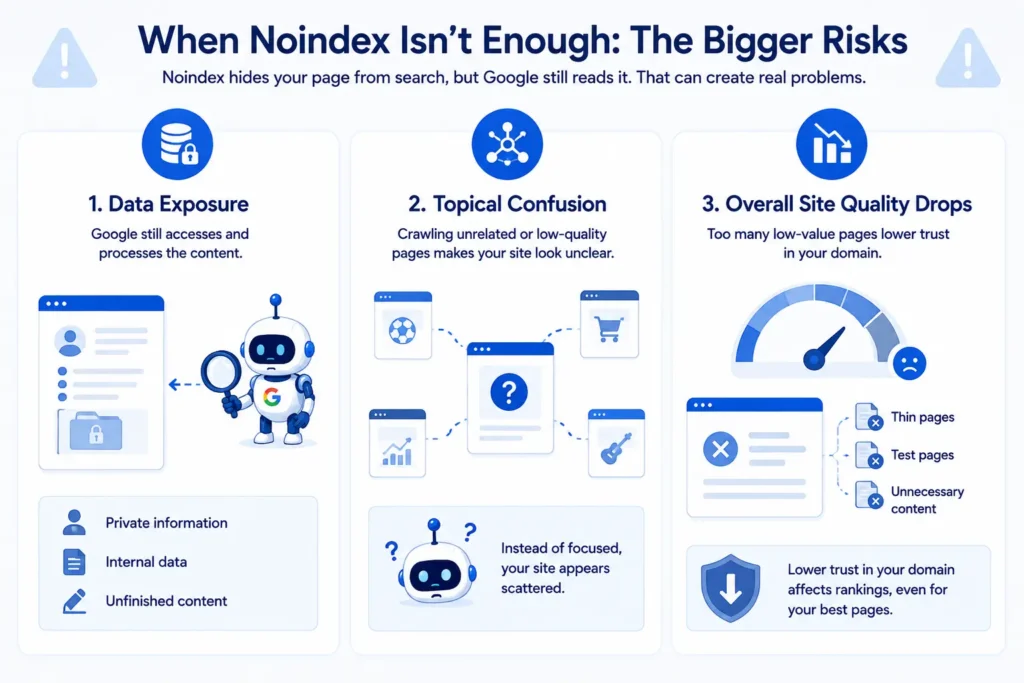
Many people assume noindex solves everything, but it only handles visibility.
Google still reads the page, and that can create problems.
Data Exposure
Even with noindex, Google processes the content.
If your page includes:
- Private information
- Internal data
- Unfinished content
It is still being accessed and analysed.
Topical Confusion
Google tries to understand what your website is about. If it keeps crawling unrelated or low-quality pages, your site starts to look unclear, and it will reduce your topical authority.
Instead of being focused, it appears scattered.
Overall Site Quality Drops
Google evaluates your site as a whole.
If it finds too many:
- Thin pages
- Test pages
- Unnecessary content
It lowers trust in your domain.
That’s why some content doesn’t rank on Google because of this trust issue.
The Nuclear Option: Delete the Page (404 or 410)
Sometimes the simplest solution is the most effective. If a page has no value, deleting it is often the best choice.
How Google Reacts
| Status Code | What Google Thinks | How Google Reacts |
| 404 Not Found | “This might be a temporary mistake. Let me check back a few times just to be sure.” | Removes from search quickly, but will re-crawl the URL a few times over the next few weeks before giving up entirely. |
| 410 Gone | “This was deleted on purpose. It is permanently destroyed.” | Removes from search instantly and stops crawling the URL almost immediately. |
Why This Works
- No page means no crawling
- No content means no risk
- No confusion means a cleaner site
This is especially useful for outdated or useless pages.
What About Redirects?
Redirects can help, but only when used correctly.
When Redirect Works Well
If you have a better page covering the same topic:
- Redirect the old page to the new one
- Google transfers value
- Users land on useful content
This strengthens your site.
When Redirect Becomes a Problem
If you redirect everything to the homepage or unrelated pages:
- Google sees a mismatch
- It treats it like a soft 404
- The redirect loses its purpose
Quick Decision Guide
| Situation | Best Action | Why This Works |
| Page has no value | Use 404 or 410 | Completely removes the page and its data, so Google cannot crawl or read anything at all |
| The page has related replacement | Use 301 redirect | Passes value to a better page and keeps both users and SEO aligned |
| The page must stay hidden | Use noindex + proper control | Keeps it out of search, but still requires extra care since Google can still access the content |
A Simple Rule That Saves You Time
You do not need complicated strategies if you follow this:
- For old pages → let Google crawl, then block
- For new pages → hide them before Google finds them
This one rule prevents most mistakes.
Final Thought
A noindex tag is not a security feature and not a crawl blocker. It is simply a visibility instruction.
Real control comes from:
- Using the correct order
- Removing conflicting signals
- Choosing the right method for each situation
Once you apply that properly, Google’s behaviour becomes predictable, and you stop fighting the system altogether.
The 3-Second “Should I Block It?” Flowchart
Before you touch another line of code, ask yourself this one question: Does this page have any actual value to a human user?
- YES, but it’s private: Put it behind a password.
- YES, but I have a better version: 301 redirect it to the better version.
- NO, and it’s completely useless: delete it and let it 404.
- NO, but I absolutely need the URL to exist live: leave it open; let Google read the noindex, and then lock the gates via robots.txt.
Frequently Asked Questions
What if my page shows the status “Discovered – currently not indexed”?
This status means Google knows your URL exists but hasn’t actually crawled or read the content yet. If you want this page hidden, this is the perfect window of opportunity. Add your noindex tag right now; when Googlebot finally gets around to visiting the page for the first time, it will read the tag instantly and prevent the page from ever hitting search results.
Is there another way to stop indexing without using a noindex tag?
Yes, you can use server-level password protection, which completely locks Googlebot out and returns a 401 Unauthorized code. Alternatively, you can delete the page to return a 404 or 410 dead-end status or use a rel=”canonical” tag to point Google toward a main version if the page is just duplicate content.
What happens if a page has no noindex tag but is blocked in robots.txt and Google finds it through a backlink?
Google will index a “blank skeleton” of your page anyway. Because robots.txt stops the crawl, Google cannot read your content, but the external backlink proves the URL exists. Google will display a broken-looking result in search with a generic snippet that reads, “No information is available for this page because of robots.txt.”
 Add Content Decoded as a preferred source